Convert your Excel file to an XML
You can convert your Excel file to an XML data file, or vice versa. This enables you to exchange data between different applications. First, turn on the Developer tab.
Here's the data we want to convert to an XML data file.
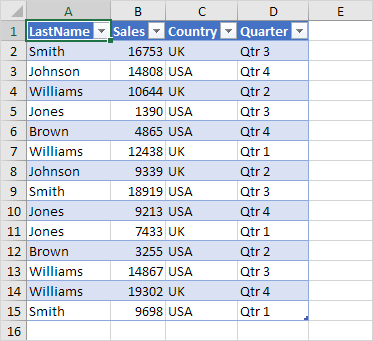
First, we will create a schema based on XML source data. The schema defines the structure of the XML file. We have to do this outside Excel.
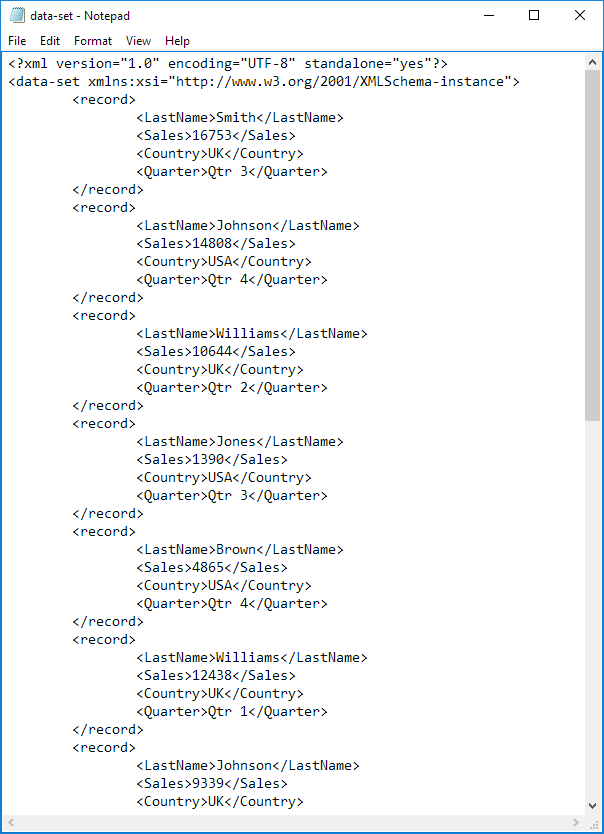
1. For example, open Notepad and add the following lines.
<?xml version="1.0" encoding="UTF-8" standalone="yes"?>
<data-set xmlns:xsi="http://www.w3.org/2001/XMLSchema-instance">
<record>
<LastName>Smith</LastName>
<Sales>16753</Sales>
<Country>UK</Country>
<Quarter>Qtr 3</Quarter>
</record>
<record>
<LastName>Johnson</LastName>
<Sales>14808</Sales>
<Country>USA</Country>
<Quarter>Qtr 4</Quarter>
</record>
</data-set>
Note: the tags refer to the column names, but you can give them any name you want! For example, instead of LastName use Name.
2. Save the file as schema.xml.
3. Open data-set.xls.
4. On the Developer tab, open the XML Source task pane.
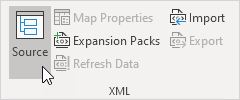
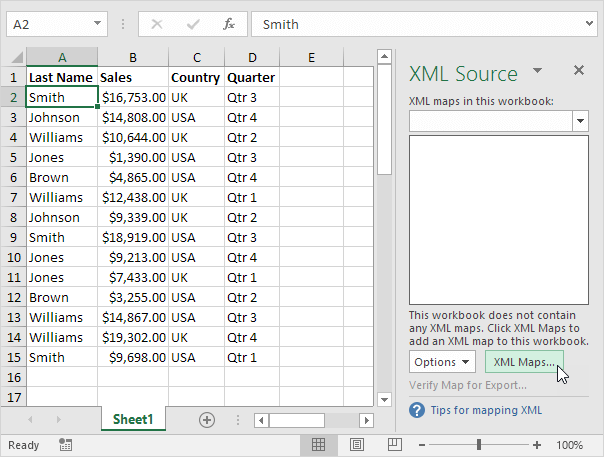
5. To add an XML map, click XML Maps...
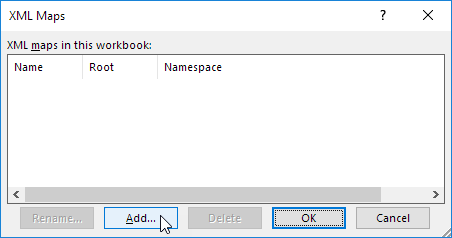
The XML Maps dialog box appears.
6. Click Add...
7. Select schema.xml and click OK twice.
8. Now simply drag (map) the 4 elements from the tree onto the worksheet (row 1).
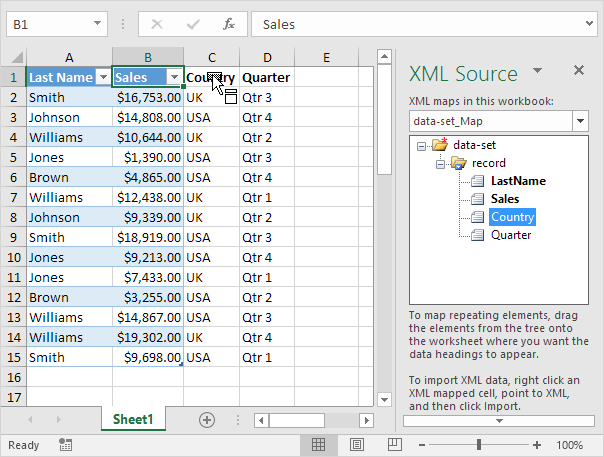
9. On the Developer tab, under the XML group, click Export.

10. Save your file as data-set.xml and press Enter.
Result:
That saves quite a lot of time!
Note: to import an XML file, open a blank workbook, on the Developer tab click Import, and select the XML file.
I have about 200 Excel files that are in standard Excel 2003 format.
I need them all to be saved as Excel xml - basically the same as opening each file and choosing Save As... and then choosing Save as type: XML
Spreadsheet
Would you know any simple way of automating that task?
Here is a routine that will convert all files in a single directory that have a .xls extension.
It takes a straight forward approach. Any VBA code in a workbook is stripped out, the workbook is not saved with a .xlsm extension. Any incompatability warning are not dislayed, instead
the changes are automatically accepted.
Sub Convert_xls_Files()

Dim strFile As String
Dim strPath As String

    With Application
        .EnableEvents = False
        .DisplayAlerts = False
        .ScreenUpdating = False
    End With
'Turn off events, alerts & screen updating

        strPath = "C:\temp\excel\"
        strFile = Dir(strPath & "*.xls")
'Change the path as required

    Do While strFile <> ""
        Workbooks.Open (strPath & strFile)
        strFile = Mid(strFile, 1, Len(strFile) - 4) & ".xlsx"
        ActiveWorkbook.SaveAs Filename:=strPath & strFile, FileFormat:=xlOpenXMLWorkbook
        ActiveWorkbook.Close True
        strFile = Dir
    Loop
'Opens the Workbook, set the file name, save in new format and close workbook

    With Application
        .EnableEvents = True
        .DisplayAlerts = True
        .ScreenUpdating = True
    End With
'Turn on events, alerts & screen updating

End Sub
 wissem.jimdo.com
Wissem Mediouni Web Site
wissem.jimdo.com
Wissem Mediouni Web Site


